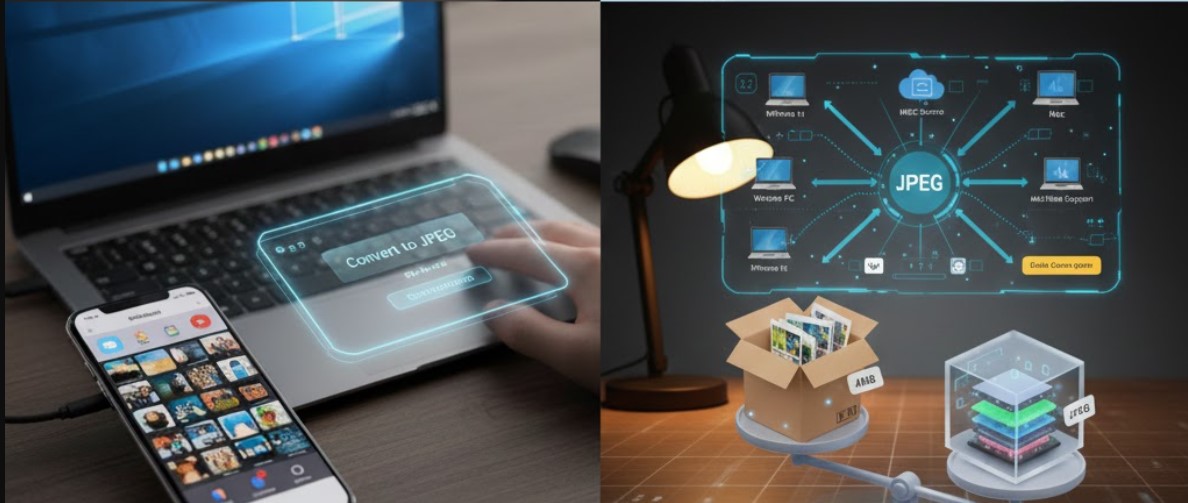
You transferred photos from your iPhone to your computer, double-clicked a file, and got nothing but an error message. The culprit? A mysterious .heic extension that Windows refuses to recognize. This frustration hits millions of users daily—HEIC files work flawlessly on Apple devices but create immediate compatibility headaches everywhere else.
By the end, you’ll know multiple ways to open HEIC files on Windows 10/11, Mac, and directly in your browser. You’ll also discover which tools preserve image quality, protect your privacy, and handle bulk conversions efficiently.
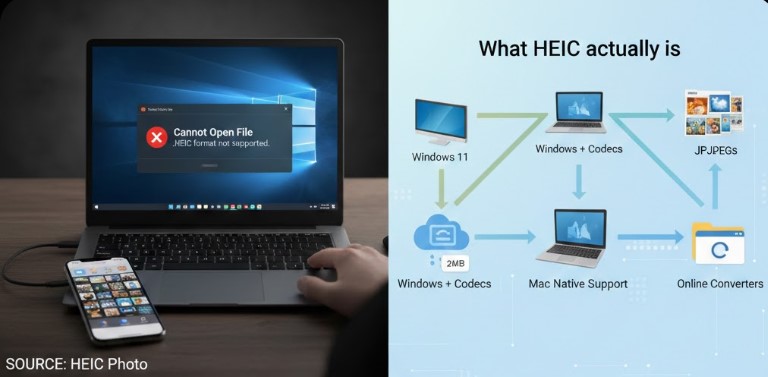
What HEIC actually is and why your iPhone uses it
HEIC stands for High Efficiency Image Container—a format Apple adopted in 2017 with iOS 11. It uses HEVC (H.265) compression to store photos at roughly half the file size of equivalent JPEGs while maintaining identical visual quality. That’s not marketing speak; a 4MB JPEG becomes a 2MB HEIC with no perceptible difference.HEIC stands for High Efficiency Image Container—a format Apple adopted in 2017 with iOS 11. It uses HEVC (H.265) compression to store photos at roughly half the file size of equivalent JPEGs while maintaining identical visual quality. That’s not marketing speak; a 4MB JPEG becomes a 2MB HEIC with no perceptible difference.
Apple made HEIC the default because it saves significant storage space on your device and in iCloud. iPhones from the 7 series onward capture in this format automatically. The format also supports features JPEG can’t touch: 16-bit color depth instead of 8-bit, HDR image data, depth maps from Portrait mode, and even Live Photos bundled as image sequences within a single file.
The trade-off? Universal compatibility doesn’t exist yet. Windows, most Android phones, web browsers, and popular platforms like Instagram and Facebook don’t natively support HEIC uploads. That’s where this practical breakdown comes in.
Windows methods: from quick fixes to power-user tools
Windows 10 and 11 can display HEIC files natively—after you install the right components. Microsoft’s approach requires two separate extensions from the Store.
Installing Microsoft’s official codec solution
The HEIF Image Extensions package is free and handles basic HEIC viewing. However, most HEIC files also require the HEVC Video Extensions codec, which Microsoft sells for $0.99. Here’s a free workaround: search the Microsoft Store for „HEVC Video Extensions from Device Manufacturer“—this version installs at no cost.
Step-by-step installation:
- Open Microsoft Store and search „HEIF Image Extensions“
- Click Get and wait for installation
- Search „HEVC Video Extensions from Device Manufacturer“ (the free version)
- Install this package too
- Restart File Explorer—thumbnails should now generate
After installation, Windows Photos app opens HEIC files directly. File Explorer displays thumbnail previews. No conversion needed for viewing.
CopyTrans HEIC: the best free third-party option
When Microsoft’s extensions act buggy (and they often do—the Store reviews average 2.2 stars), CopyTrans HEIC for Windows delivers reliable performance. This lightweight tool adds HEIC support to Windows Photo Viewer and enables right-click conversion to JPEG.
| Feature | CopyTrans HEIC |
| Cost | Free (personal use) |
| Batch conversion | Up to 100 files |
| EXIF preservation | ✓ Location, date, camera data |
| Office integration | Insert HEIC into Word/PowerPoint |
| Installation size | Under 10MB |
Right-click any HEIC file → „Convert to JPEG with CopyTrans“ → Done. The original stays intact while a new JPEG appears in the same folder.
IrfanView and XnView MP for heavy lifting
Photographers dealing with hundreds of HEIC files need batch processing. IrfanView combined with either the HEVC codec or CopyTrans handles massive conversions through its File → Batch Conversion menu. Select source files, choose output format, set quality—process thousands in minutes.
XnView MP deserves special mention because it reads HEIC natively without any additional codec installation. It works identically on Windows, Mac, and Linux, making it ideal for cross-platform workflows.

Mac solutions: native support with hidden power
Mac users running macOS High Sierra (10.13) or later have zero compatibility issues. Every HEIC file opens in Preview without configuration.
Preview app conversion workflow
Opening files is automatic—converting them takes one extra step:
- Open the HEIC file in Preview
- File → Export
- Select JPEG or PNG from the Format dropdown
- Adjust quality slider if needed
- Save
For multiple files, select all in Finder, right-click, and choose Quick Actions → Convert Image (requires macOS Mojave or later). This system-level feature batch-converts without launching any application.
Photos app and iCloud integration
Importing HEIC files into Photos preserves all metadata, depth information, and Live Photo motion. When exporting for sharing, Photos automatically converts to JPEG if the destination doesn’t support HEIC. To force this behavior during iPhone transfers, navigate to Settings → Apps → Photos → Transfer to Mac or PC → Automatic.
Online converters: quick solutions with privacy trade-offs
Web-based tools require no installation and work on any operating system. The convenience comes with a catch—you’re uploading personal photos to someone else’s servers.
Best online HEIC converters compared
| Tool | Batch Limit | Auto-Delete | Privacy Note |
| heictojpg.com | 200+ files | 48 hours | Server-based |
| FreeConvert.com | 1GB per file | After download | HTTPS encrypted |
| Picflow | Unlimited | Never uploaded | Processed locally |
| CloudConvert | 25/day free | 24 hours | GDPR compliant |
Picflow stands apart because it processes files entirely within your browser using WebAssembly. Images never leave your computer—ideal for sensitive photos.
When to avoid online conversion
Skip web tools if you’re handling:
- Personal or family photos with location data
- Professional client work with confidentiality requirements
- Files containing sensitive metadata
- Large batches (downloading ZIP archives takes forever)
Offline desktop tools like iMazing HEIC Converter provide the same convenience without privacy concerns.

Mobile solutions for Android users
Android 9 and later includes native HEIC viewing through Google Photos and the Files app. If your phone predates this, dedicated apps fill the gap.
HEIC Image Viewer (Ligrant Apps) automatically scans your device for all HEIC files, displays them in a gallery, and converts to JPG, PNG, or WebP. The built-in editor handles rotation, cropping, and basic adjustments.
Google Photos remains the smoothest option—it views HEIC natively, backs up to the cloud, and auto-converts when downloading to devices that need JPEG.
Preventing HEIC headaches at the source
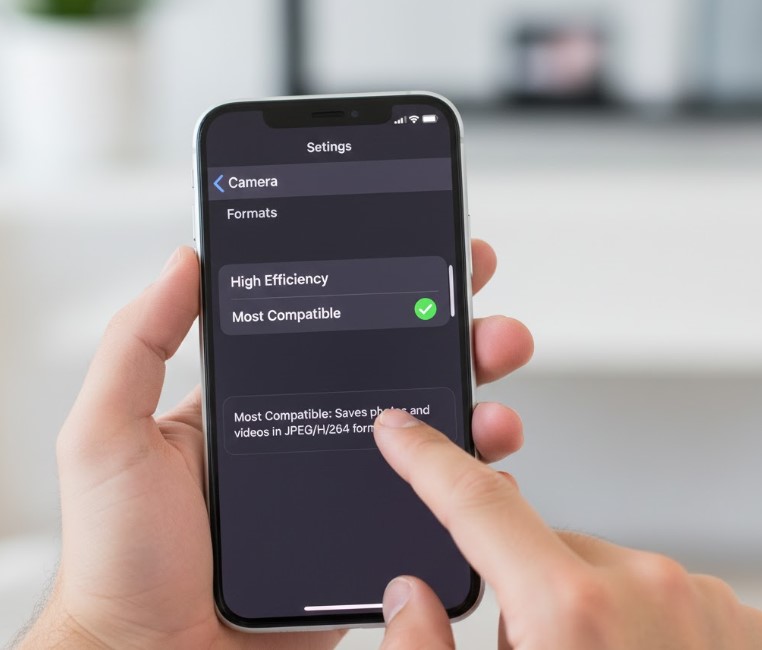
The simplest fix? Stop capturing HEIC files in the first place.
iPhone camera settings checklist:
- [ ] Open Settings → Camera → Formats
- [ ] Select „Most Compatible“ instead of „High Efficiency“
- [ ] Photos now capture as JPEG automatically
The downside: doubled storage consumption. A 64GB iPhone fills twice as fast. For users who value compatibility over space savings, this trade-off makes sense.
Alternatively, keep HEIC for storage efficiency but enable automatic conversion during transfers: Settings → Apps → Photos → Transfer to Mac or PC → Automatic. Your iPhone stores space-efficient HEIC files while sending universal JPEGs to computers.
Batch conversion without quality loss: the complete workflow
Converting hundreds of files requires the right approach to avoid quality degradation. HEIC uses lossy compression, and converting to JPEG adds another lossy step. Minimize damage with these settings:
Optimal batch conversion settings:
- Use PNG output for truly lossless conversion (files will be larger)
- For JPEG output, set quality to 95% minimum
- Enable „Preserve EXIF metadata“ to retain dates and locations
- Process files locally—avoid repeated uploads/downloads
iMazing HEIC Converter handles this workflow perfectly. Drag files in, select output format and quality, click Convert. The tool preserves color profiles including wide-gamut Display P3 that iPhones capture.
Troubleshooting common HEIC problems
When files refuse to open despite correct software installation, check these issues:
Windows thumbnails not generating: File Explorer sometimes uses single-threaded thumbnail generation. Right-click the folder → Properties → Customize → Optimize for „General items“ instead of „Pictures“ to speed up processing.
„File appears corrupted“ errors: Try opening in a different application. Some HEIC files use features like image sequences (Live Photos) that basic viewers can’t handle. XnView MP and dedicated tools cope better than Windows Photos.
EXIF data missing after conversion: Many online converters strip metadata. Desktop tools like CopyTrans and iMazing preserve location, camera settings, and timestamps. Always verify after bulk conversions.
Files opening but displaying wrong orientation: This happens when conversion tools ignore EXIF rotation flags. IrfanView’s batch conversion includes an „Auto-rotate based on EXIF“ option that fixes this automatically.
Choosing the right method: quick decision framework
You need to view one file quickly: → Windows: Install HEIF extensions from Microsoft Store → Mac: Double-click—it just works → Any platform: Upload to heictojpg.com
You need to convert many files: → Windows: IrfanView or iMazing HEIC Converter → Mac: Quick Actions in Finder → Privacy-focused: Picflow (browser-local processing)
You want permanent compatibility: → Change iPhone settings to capture JPEG instead
You’re a developer: → Python: pillow-heif library → CLI: ImageMagick with libheif